Seller Registration Assistance Guide
Introduction
After selecting a plan on DMS Matrix, you will be automatically redirected to the Registration Form. This form is specially designed to help you create your account in the easiest and fastest way possible.
By filling this form, you can register yourself smoothly without any technical difficulty. You just need to enter some basic personal and business details, and within a few minutes your account will be ready.
Access the registration form
To begin your registration process, first visit the DMS Matrix Pricing Page and select the plan that best suits your business needs.
Once you select your plan, you will be redirected to the Registration Form, where you can start filling in your details to create your account.
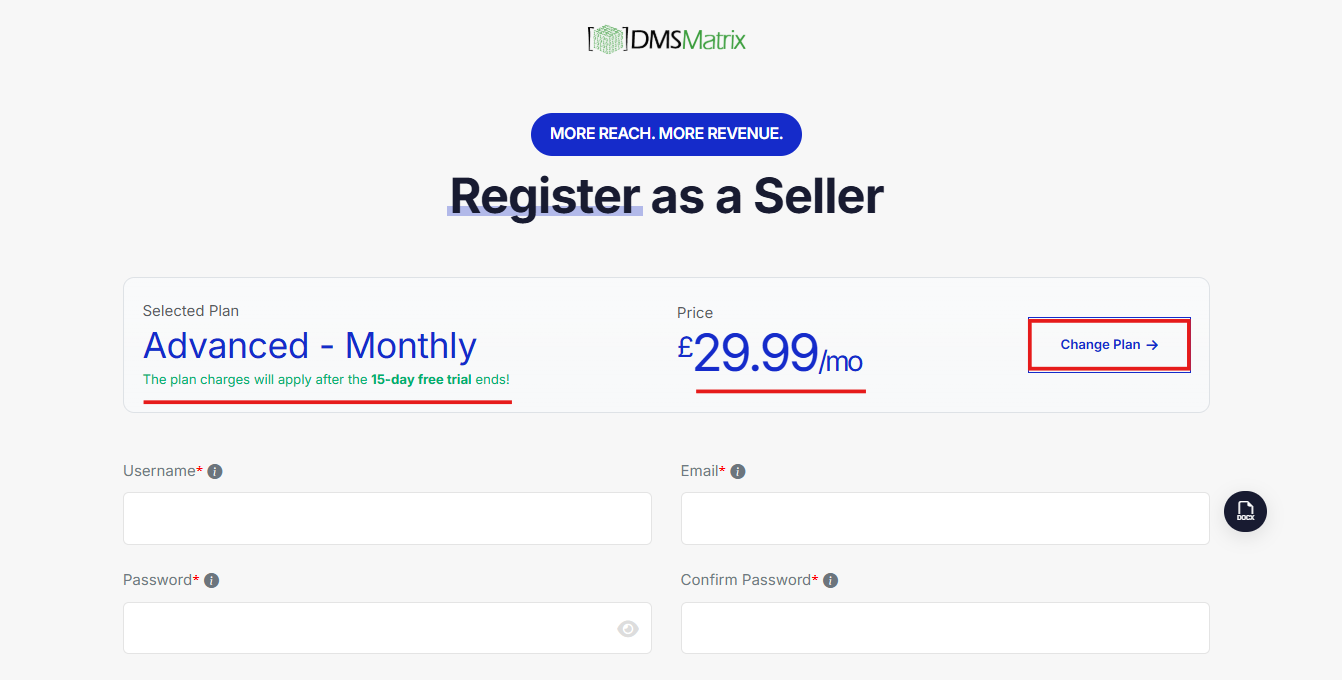
Here you will see the plan you selected earlier along with its pricing details. You can also change your plan from this page if required, based on your business needs.
Start Filling in Your Registration Details
Now begin entering your personal and business information in the registration form. Make sure all details are accurate and complete, as this information will be used to create your merchant account.
Account Credentials
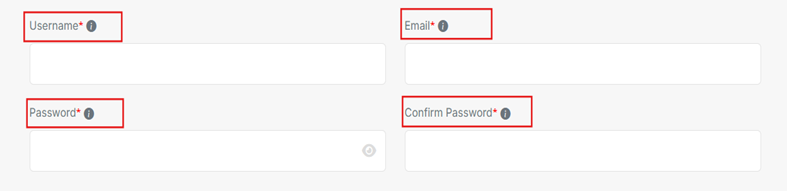
In this section, you need to create your login information for DMS Matrix. These details will be used every time you log in to the system, so make sure you choose them carefully and keep them secure.
Username
The username you enter here will become your official merchant access username, which you will use to log in to your DMS Matrix account.
Email address of the primary contact person for this account. This email will be used for account verification, important system updates, password recovery, and all official communication related to your registration.
Password Requirements
Create a strong password to secure your account. This same password will be your merchant login password, which you will use to access your merchant dashboard on DMS Matrix. Do not share this password with anyone. Your password must meet the following security requirements –
- Minimum 8 characters in length
- At least one uppercase letter (A–Z)
- At least one lowercase letter (a–z)
- At least one number (0–9)
- At least one special character (@, #, $, %, etc.)
Confirm Password
Re-enter your password to confirm it. This must be exactly the same as the password you entered in the previous field.
Company Details and Contact Information
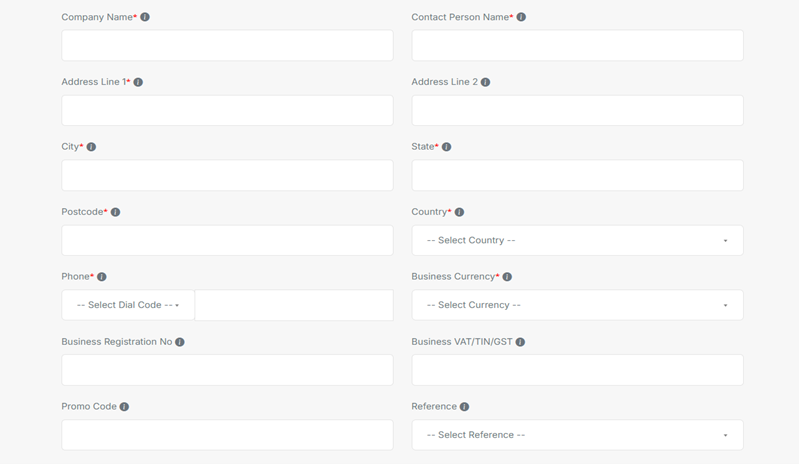
In this section, please fill in your company and contact details accurately and completely. This information will be used to create your merchant profile and for all official communication, billing, account verification, and support purposes. Make sure to fill in all the required details.
Company Information
Company Name – Enter the name under which you intend to sell. This can be your legal business name, brand name, or your full name if you are an individual seller. This name will be displayed as your Merchant Name on DMS Matrix.
Business Registration No – Enter your official Business Registration Number issued by your local government or authority. This information helps verify your business’s legal identity and ensures compliance with official records.
Business VAT / TIN / GST – Enter your Tax Identification Number (TIN), Goods and Services Tax (GST), or Value Added Tax (VAT) number. This information is required for tax reporting, invoicing, and compliance with local tax regulations.
Business Currency – Select the currency you want to use for your business transactions. This will be the default currency for pricing, payments, invoicing, and financial reports.
Contact Person Details
Contact Person Name – Enter the full name of the individual responsible for managing this account and business communications. This person will serve as the primary point of contact for all official correspondence.
Phone Number – Enter the phone number of the primary contact person. This number may be used for account verification, urgent system updates, and support-related communication.
Company Address
Address Line 1 - Enter the primary street address for your business or residence. Please include the building number, street name, and apartment or suite number, if applicable.
Address Line 2 - Enter any additional address details, if applicable. This may include apartment number, suite, floor, building name, or other secondary location information.
City - Enter the name of the city or town associated with your address. This helps ensure accurate location and service availability.
State - Enter the state, county, province, or region associated with your address. This helps ensure accurate location details for billing, shipping, and official communication purposes.
Country – Select the country where your business or residence is located. This determines the applicable regulations, currency, tax settings, and regional services. Based on the country you select, the system will automatically assign the appropriate currency and phone code, so you do not need to select them manually.
Additional Information
Promo Code – Enter the promotion code provided by a marketplace, partner, or other authorized source. This code may unlock special offers, discounts, or marketplace-specific benefits associated with your account.
Reference - Let us know how you heard about us. Select the specific channel through which you discovered or accessed our platform. This helps us understand our reach and improve our marketing efforts.
Terms and Conditions
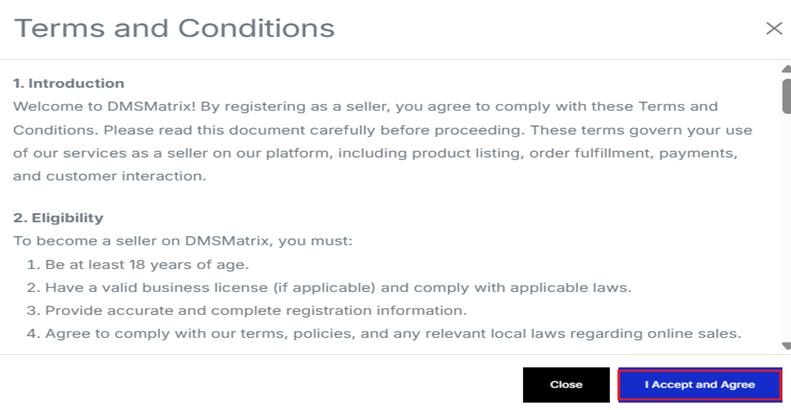
By selecting this checkbox, you confirm that you have read, understood, and accepted the DMS Matrix Terms and Conditions. This agreement is mandatory to complete your registration. Please read all the Terms and Conditions carefully and then click on “I Accept & Agree” to proceed.
Google reCAPTCHA Validation
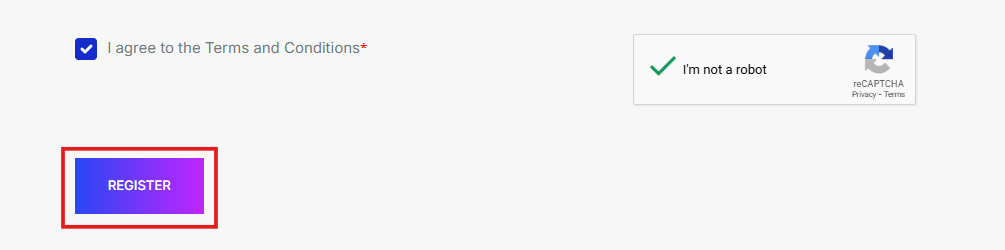
To proceed with the registration, please complete the Google reCAPTCHA verification. This step is required to confirm that the form is being submitted by a real user and not an automated system.
Validate the Google reCAPTCHA and proceed with the next steps. Follow the on-screen instructions (for example, select all images that match the given object).
Sometimes the Google reCAPTCHA session may expire due to inactivity or delay. If this happens, please retry the verification by completing the Google reCAPTCHA again and then submit the form.
Once the verification is completed successfully, you can proceed with the next steps of the registration process.
Confirm & Register
After filling in all required details, click the Register to submit the form. If all the entered details are correct, your registration form will be submitted successfully, and a “Well Done” confirmation message will appear. This indicates that you are now able to activate your account.
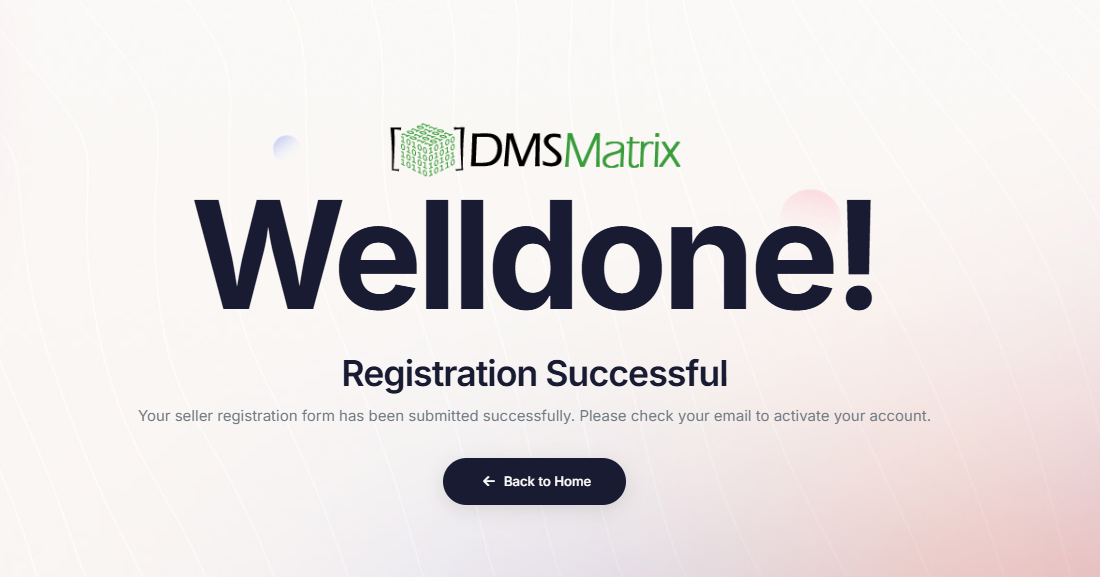
Once the form is submitted successfully, you will be referred to the Post-Registration Account Activation Flow for the next steps.
Post-Registration Account Activation Flow
Activation Email
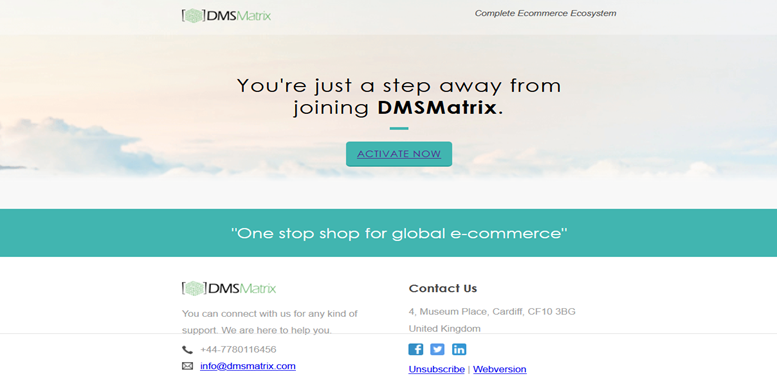
Once your registration is submitted, DMS Matrix will send an Activation Email to your registered email address for following things –
- Verify your email address.
- Confirm that the registration request is genuine
Inside the Activation Email, you will find an Activation request. Click on “Active now “to activate your account. This step confirms your email and enables your account in the system.
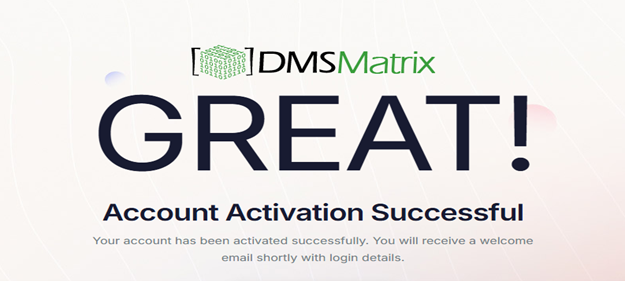
Welcome Email
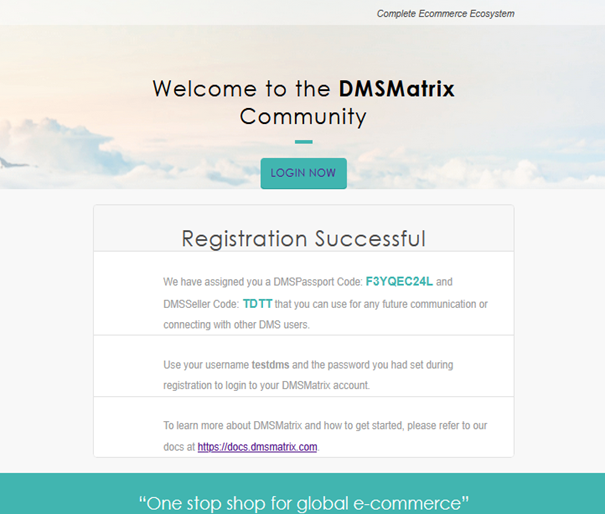
After successful activation, you will receive a Welcome Email from DMS Matrix –
- Confirmation that your account is now active.
- A DMS Matrix Login access the platform.
- Click on “Login now” to open merchant account.
- Basic information about your merchant account.
- Helpful resources or next steps.
Login to DMS Matrix
The Welcome Email will also contain a DMS Matrix Login –
Click on this link to access the DMS Matrix login page. Use the username and password you created during registration to log in.
Once logged in, you will be redirected to the Entity Settings Dashboard, where you can begin configuring your account.